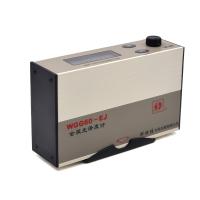
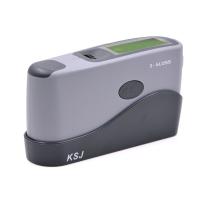
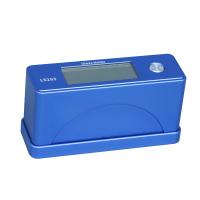
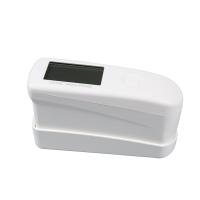
Introduction to the Operation of Color Spectrum Single Angle Gloss Meter
1. On/off operation
Long press the "Test" button on the side of the instrument to realize the on/off operation of the instrument, accompanied by a "beep" sound.
2. Calibration page
Open the instrument, automatically enter the calibration page, press the "Test" button, and the instrument will automatically calibrate. When you hear a "beep" sound and the words "calibration successful" appear, it means the calibration is successful. After the calibration is passed, enter the "Standard Sample Test" page, as shown in the figure below.
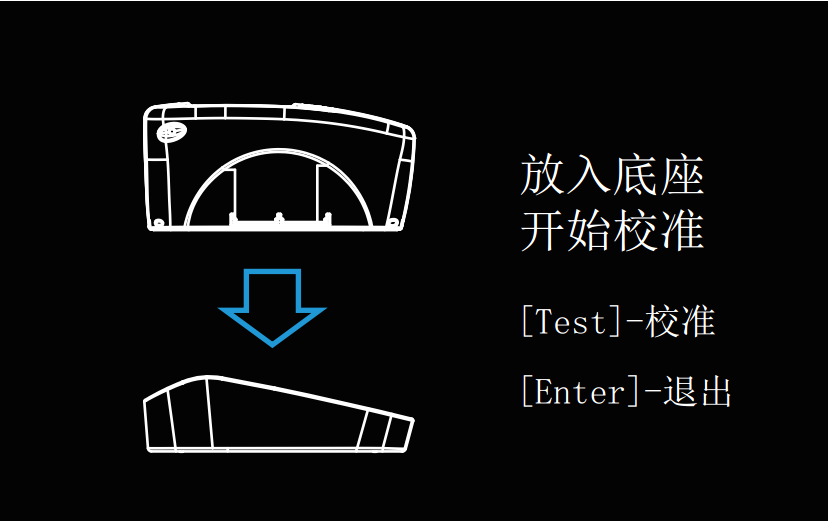
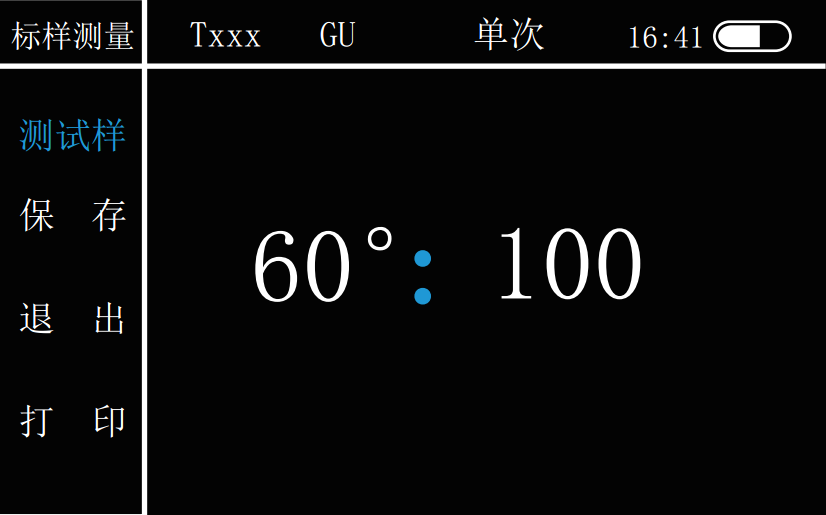
Note: Calibration is required during the measurement process, you can enter the "main page" and select the "calibration" icon, and the operation is the same as above.
3. The main menu page The
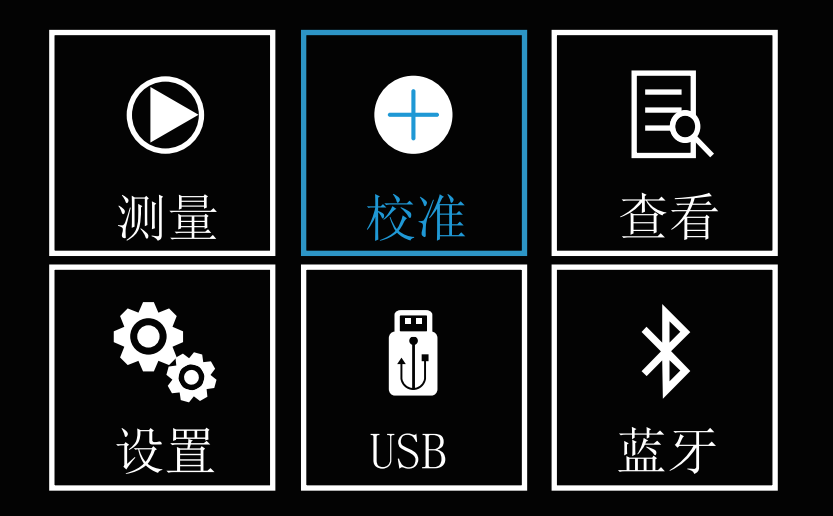
"main menu" page is shown in the figure below. Press the "Up" and "Down" keys to switch between operations, and you can perform "measurement", "calibration", "view", "setting", "USB", Select "Bluetooth" and press "Enter" to confirm. Press the "Test" key to return to the previous step.
4. Measurement page
On the main page, press the Up and Down selection keys to select the "Measurement" icon, and press the "Enter" key to enter the "Measurement" page. Under this page, the user can measure the gloss information of the sample. It can also measure the gloss difference between the sample and the standard sample, and check whether the sample is qualified or not, and can choose to "save" and "print" the test results through the Up and Down selection keys.
5. Standard sample test
In the main menu, select the "Measurement" icon through "Up" and "Down", and press "Enter" to enter the measurement page. The system defaults to the "Standard Sample Test" page, as shown in the figure below. Press "Test" to test the standard sample. After hearing the sound of "beep", the test is completed and you can check the test results. Press the "Up" and "Down" keys to choose to "save" and "print" the test results.
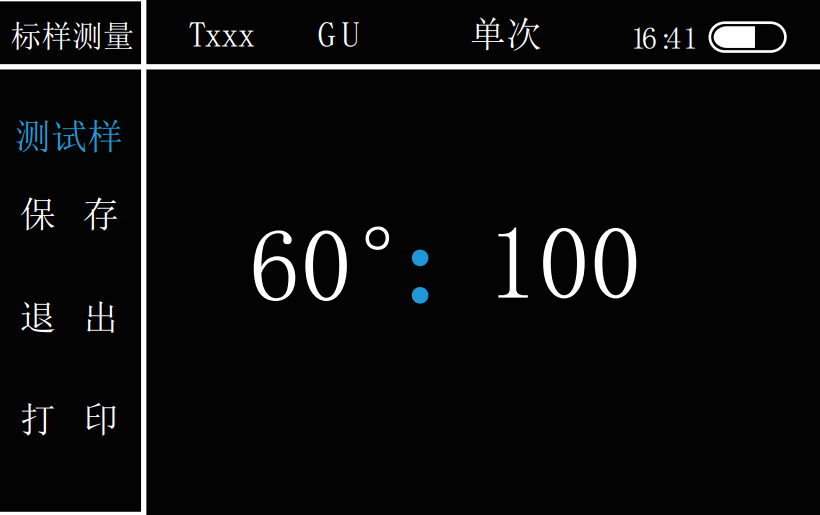
Save: After the test is completed, press the "Up" and "Down" keys to select "Save" the test results, press the "Enter" key to confirm, and the pop-up window shown in the figure below will appear.
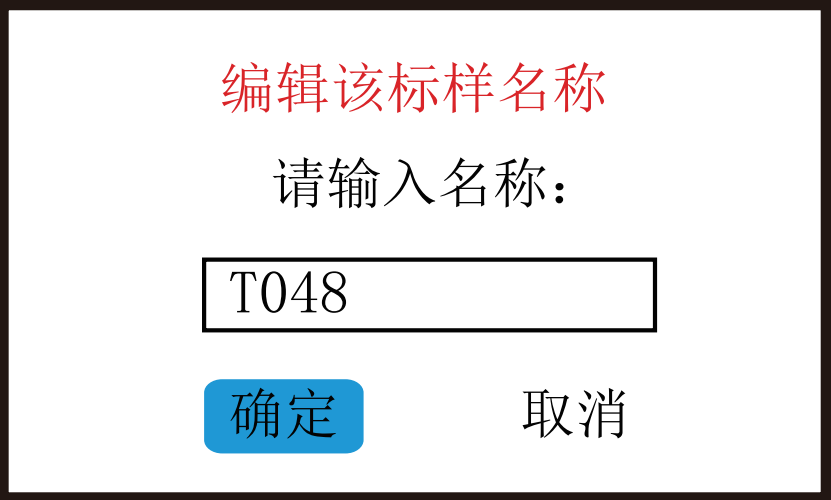
Use the "Up" and "Down" keys to select the sample name, press the "Enter" key to confirm, and use the "Up" and "Down" keys to modify the corresponding value and character (the value range is 0-9, and the letter is AZ), and then Press "Enter" to confirm. After editing, press the "Test" key to exit editing, and then confirm whether to modify.
Print: Press "Up" and "Down" to select "Print", press "Enter" to confirm.
6. Sample test
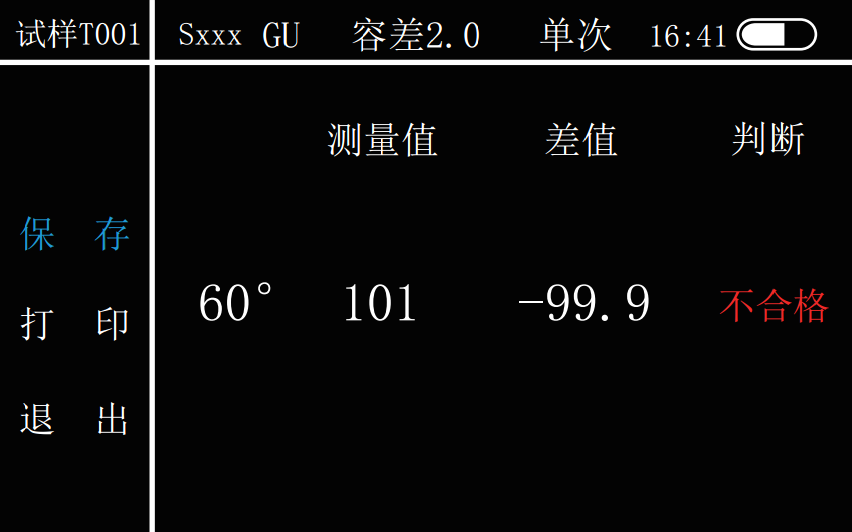
After the above standard sample test is completed, use the "Up" and "Down" keys to move the option to "Test Sample", press the "Enter" key to confirm, and enter the "Sample Test" interface as shown in the figure below . The interface takes the current test data as the standard sample, press the "Test" button to test the sample, after hearing the "beep" sound, the test is completed and the gloss test result is displayed. Same as the standard sample, the name of the sample is displayed as "Sxxx".
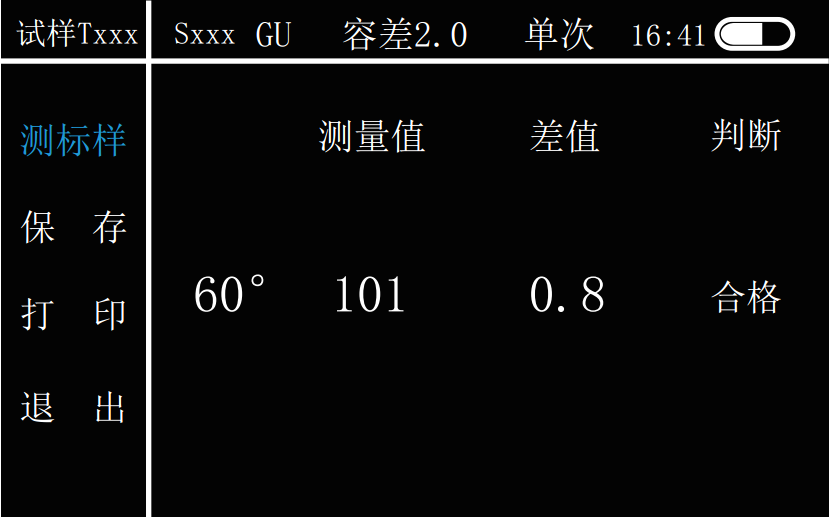
In the "Data View" interface, gloss measurement can also be performed. Use the "Up" and "Down" keys to select an existing standard sample, press the "Enter" key to enter the selection menu, and select "Load this standard sample", as shown in the figure below.

Enter the "sample measurement interface" under the standard sample, as shown in the figure below. Press the "Test" key to measure, and finish the gloss measurement after the "beep" sound, and check the test results. Press the "Test" key to take a new gloss measurement.
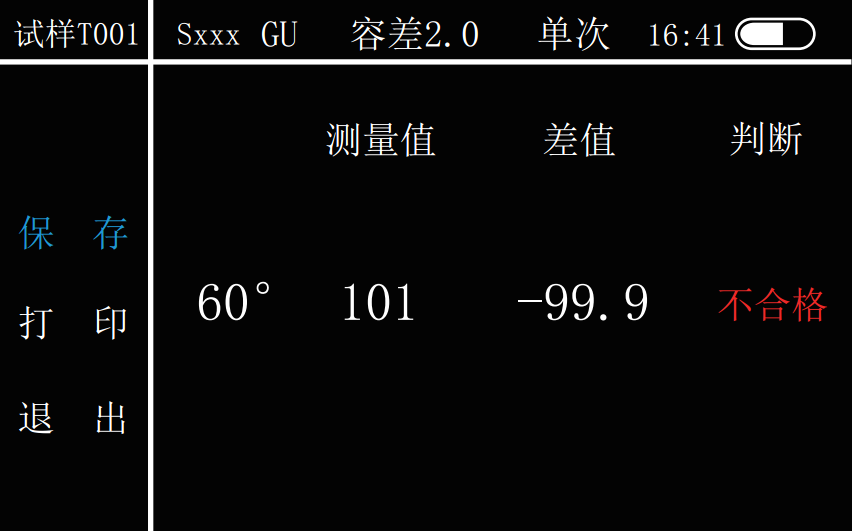
Note: Please set the tolerance before the gloss test. (Refer to Settings - Measurement Settings - Tolerance) In the "Sample Measurement" page, through the "Up" and "Down" keys, you can also select "Print", "Save" and "Exit" for the test results, Press "Enter" to confirm. The operation of saving the sample is the same as saving the standard sample.
7. Data view
On the main menu interface, select the "View" icon through "Up" and "Down", press "Enter" to confirm, and enter the "Data View" page as shown in the figure below. In this interface, the user can view the saved standard sample and sample information.

Press the "Up" and "Down" keys to select the standard sample to be viewed, press the "Enter" key to pop up the menu bar, as shown in the figure below, press the "Up" and "Down" keys to select the standard sample to be loaded, view the sample, delete, edit name etc.
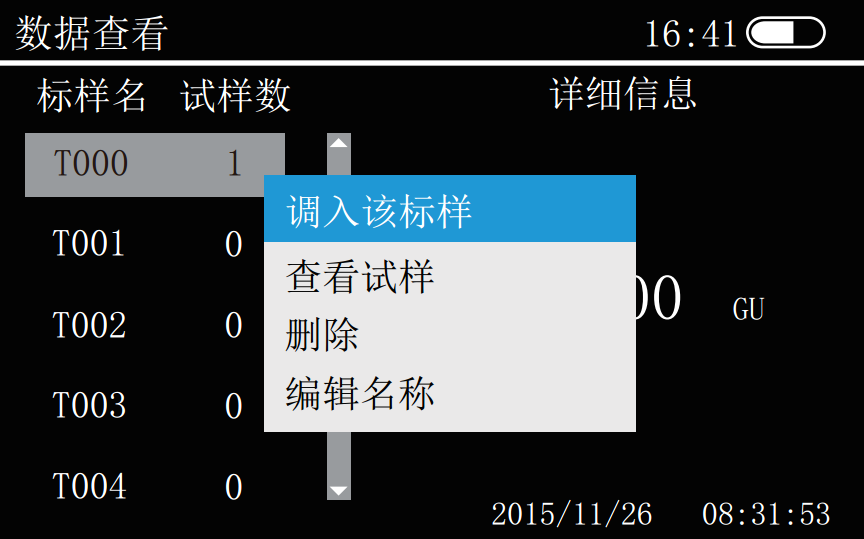
调入该标样:可以在此界面进行该标样下的试样测试,按“Test”键可进行多个样品测试,并可对测试数据进行“保存”、“打印”操作。
查看试样:查看所选标样下的所有试样的测试记录。通过“Up”和“Down”键选中试样,按“Enter”键确定,如下图所示。即可在弹出菜单框中对所选测试记录进行删除、删除所有、编辑名称操作。
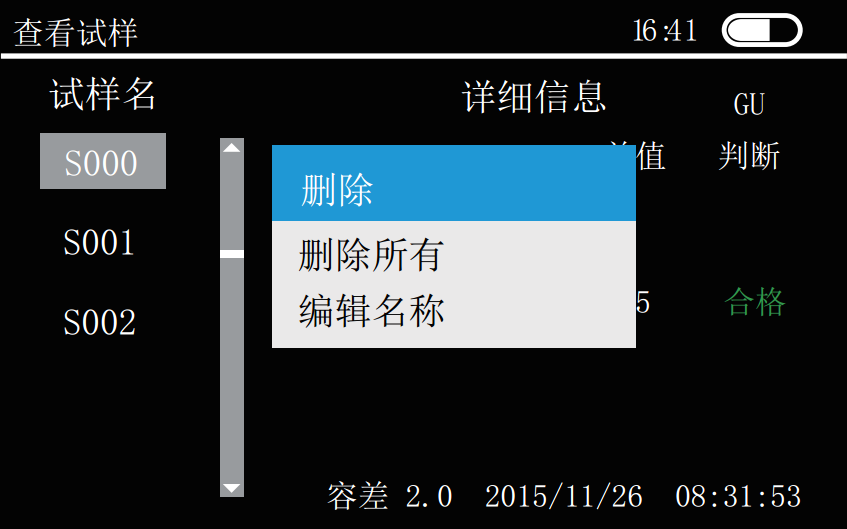
删除:将删除该试样的所有测试记录。
删除所有:将删除该标样下的所有试样测试记录。
编辑名称:操作请参考(测试——标样测试——保存——编辑名称)。
八、设置
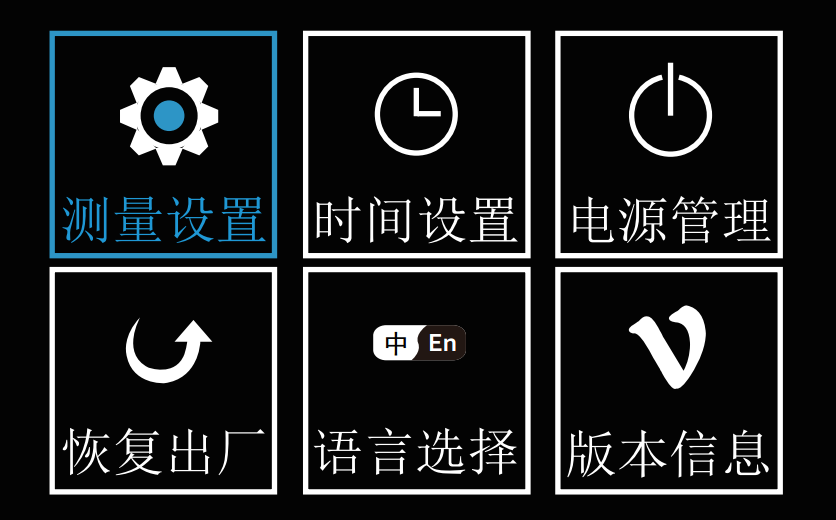
在主菜单界面选择“设置”图标,按“Enter”键确定,进入“设置”页面,如下图所示。通过“Up”和“Down”键进行操作:“测量设置”、“时间设置”、“电源管理”、“恢复出厂”、“语言选择”、“版本信息”等选择,再按“Enter”键确认。
九、测量设置
通过“Up”和“Down”键选择“测量设置”图标,按“Enter”键进入“测量设置”界面,如下图所示。
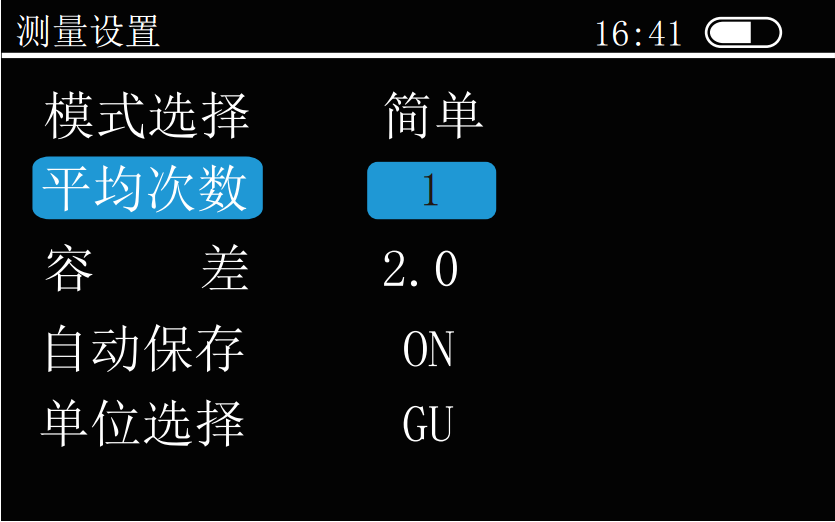
通过“Up”和“Down”键选择设置内容,按“Enter”键进行确认。
模式选择:按“Enter”键,切换“统计”和“简单”两种模式平均次数:按“Enter”键选择,通过“Up”、“Down”键改变数值,再按“Enter”键进行确认。
容差:按“Enter”键选择,通过“Up”、“Down”键改变数值,再按“Enter”键进行确认。
自动保存:按“Enter”键切换“ON”、“OFF”保存模式。
单位选择:按“Enter”键,切换“GU”和“REF”两种单位。

十、时间设置
通过“Up”和“Down”键选择“时间设置”图标,按“Enter”键进入“时间设置”界面,如图下图所示。
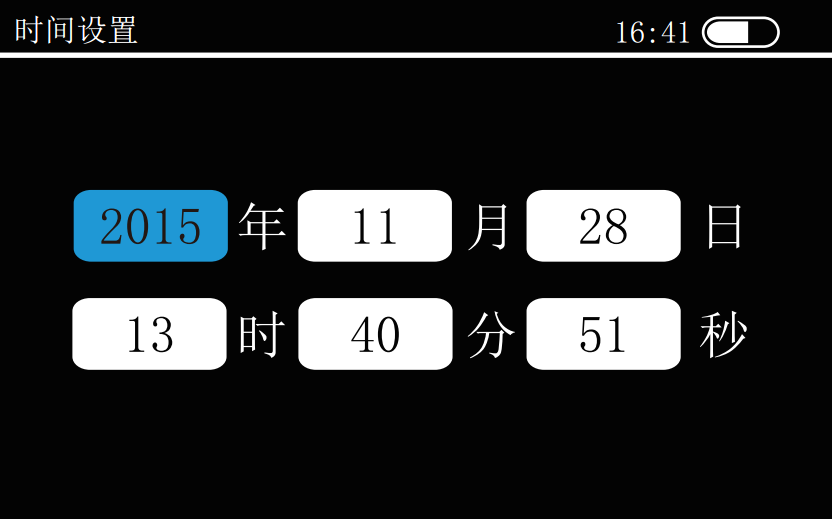
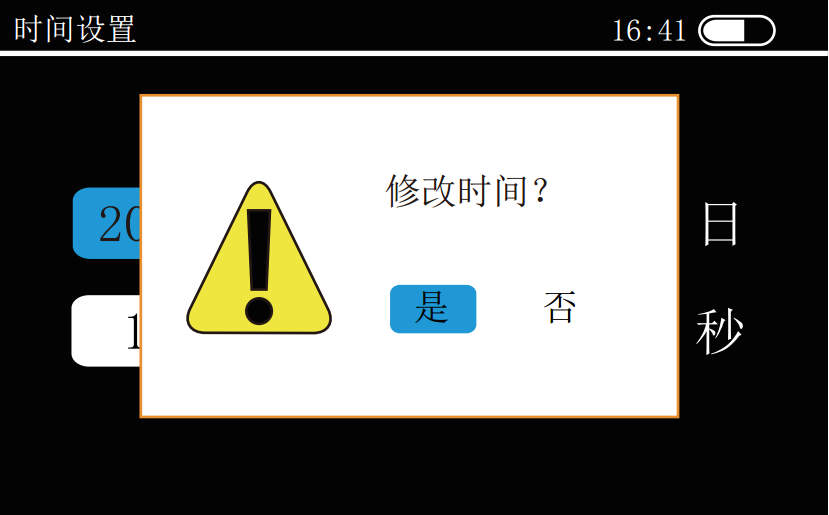
在时间设置页面下。按“Up”、“Down”键移动蓝色方块所对应的数字,然后按“Enter”键,蓝色方块所对应的数字可调状态,通过“Up”、“Down”键对时间参数进行修改,再按“Enter”键确认。按“Up” “Down”键移动蓝色方块到其他需要修改的数字下,修改同上。所有的数修改完时,按“Test”键进入保存页面,如下图所示。
十一、电源管理
通过“Up”和“Down”键选择“电源设置”图标,按“Enter”键进入“电源设置”界面,如下图所示。
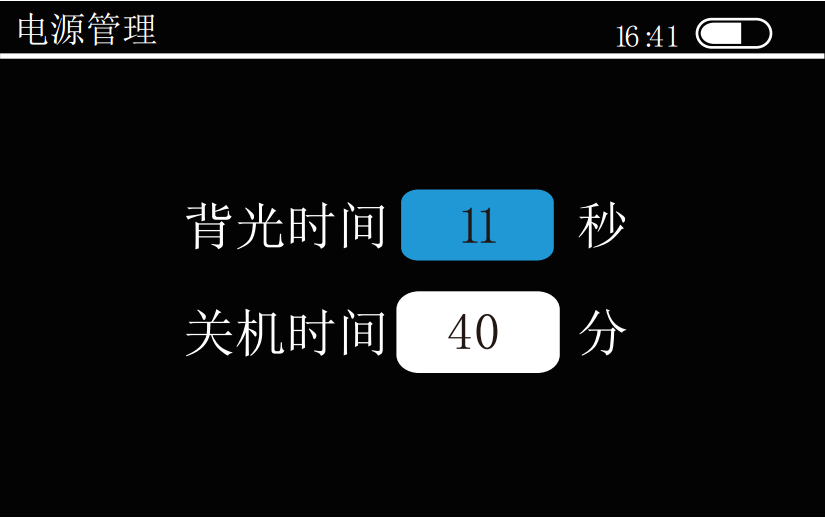
在“电源设置”界面按“Up” “Down”键移动“ ”所对应的数字,然后按“Enter”键,“ ”所对应的数字变为可调状态,通过“Up” “Down”键修改“ ”所对应的数字,调整背光和关机时间,其中背光时间调整范围为0-60秒,间隔为5秒;关机时间0-60分,间隔为1分。修改完之后,再按“Enter”键确认。
注:背光时间设置为0时代表不关背光,关机时间设置为0时代表不自动关机。
十二、恢复出厂
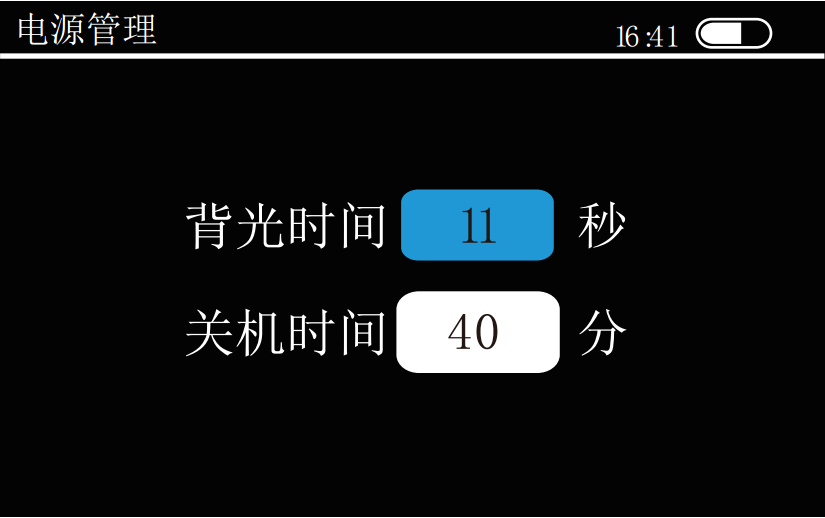
通过“Up”和“Down”键选择“恢复出厂”图标,按“Enter”键进入“恢复出厂”界面,如下图所示,移动蓝色方块(按“Up” “Down”键即可),当光标蓝色方块移动在“是”上,按“Enter”键确定则将存储器里的数据恢复成出厂设置,当光标移动在“否”上,按“Enter”键,则取消退出。
13. Language selection
Press the "Up" and "Down" keys to select the "Language Setting" icon, and press the "Enter" key to enter the "Language Setting" interface, as shown in the figure below. Use the "Up" and "Down" keys to select the language, and then press the "Enter" key to confirm. The instrument provides two languages, Chinese and English.

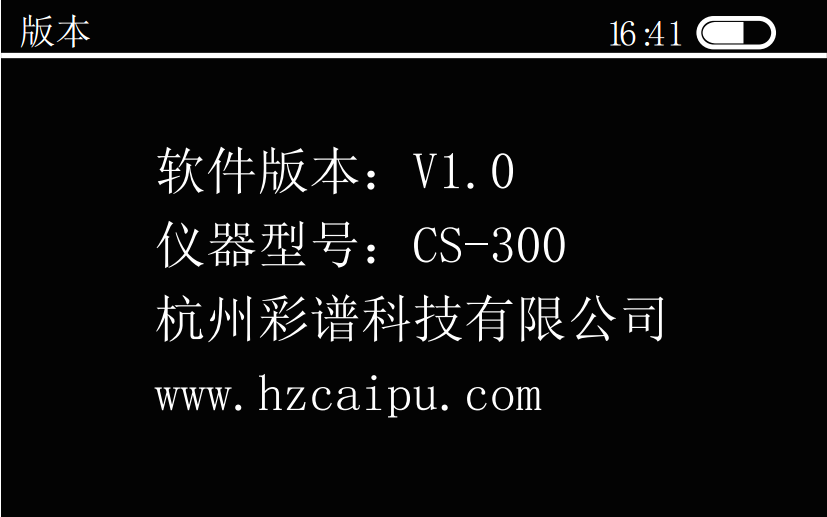
14. Version information
Press the "Up" and "Down" keys to select the "Version Information" icon, press the "Enter" key to enter the "Version Information" interface, and you can see the detailed version information of the gloss meter.
15. USB communication
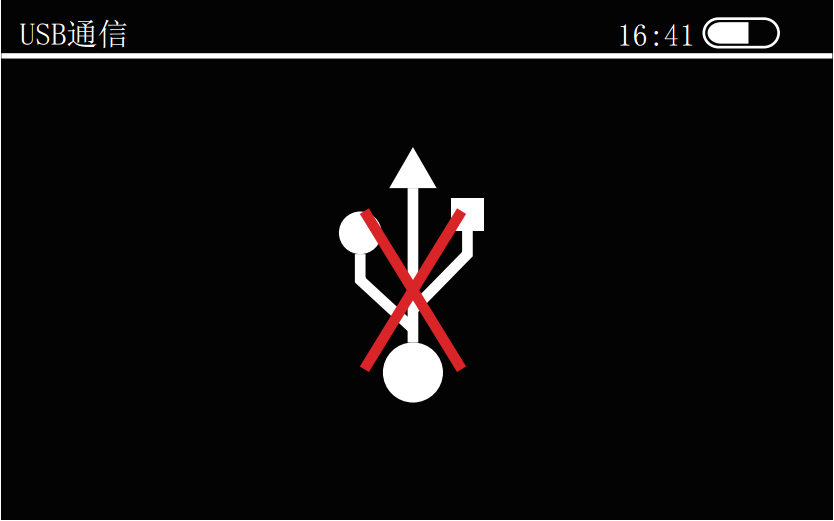
In the main interface, press the "Up" and "Down" keys to move the cursor to "USB", press the "Enter" key to confirm, and enter the "USB communication" interface. Connect the instrument to the PC with the standard USB data cable, and install the driver according to the prompts. After being installed correctly, it can be operated on the upper computer of the PC. When the USB cable is not inserted into the USB interface or the USB cable interface is not in good contact, plug it into the USB interface or reinsert it to connect normally and operate the host computer.

- 1Principle and Application of Glossiness Tester
- 2Working Principle and Application of Metal Gloss Meter
- 3Basic principle and application analysis of insulating paint gloss Detector
- 4Working principle and application analysis of film Glossmeter
- 5Principle and application analysis of microporous gloss meter
- 6 FZ/T 01097 Analysis of fabric gloss test method
- 7Evaluation and Application of Optical Properties of Powder coatings
- 8Coating coatings - Determination of surface gloss and Gloss meter
- 9The Importance and Method of Gloss Measurement of Paint Film